I need an idiots guide to understanding timelines

I’m trying to produce a basic animation and I’m having trouble understanding the concepts around starting and looping timelines within a single scene.

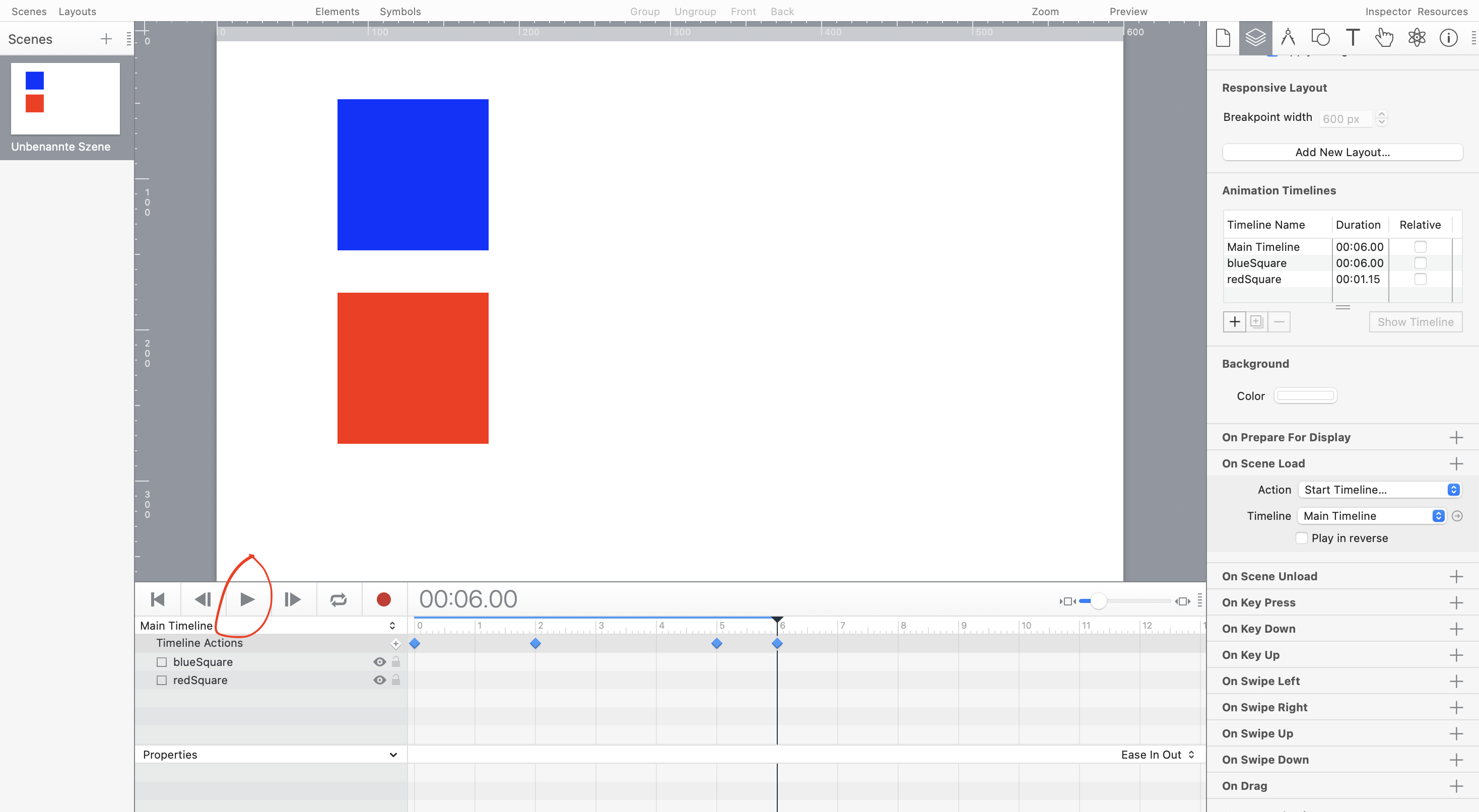
I want to produce a short animated scene - 6 seconds long, where a blue square moves left to right and a red square waits for 2 second, then starts a full rotation and repeats this on a loop until one second before the end of the scene.

I know this is very simple animation to produce on a single timeline, but what I’m trying to master is the concepts involved with triggering the starting, stopping and looping of different timelines within the same scene. So that I’d be able to use those concepts to create the motions that I actually want to animate.

I’d be really appreciative if anyone could take a look at the attached files and correct where I’m going wrong so that the ‘Timeline Actions’ file plays in the same way that the ‘Single Timeline’ file does.

I’m pretty sure it’s something to do with the timeline actions that I’ve set up and I know I’ll be kicking myself when I realise what it is I’m doing wrong.

Moving a a few colourful boxes around the screen isn’t what I’m trying to achieve at all, but once I can understand the concepts of starting, stoping and looping different timelines within the same scene then I’m sure I’ll be able to produce the simple explainer animation that I’m actually trying to produce.

Many thanks for any assistance.

Timelines.zip (35.9 KB)
You're actually already on the right track. Here's how I would do it:

  • Create a separate timeline for each animation.
  • Nothing really happens on the main timeline. This gives you maximum flexibility.
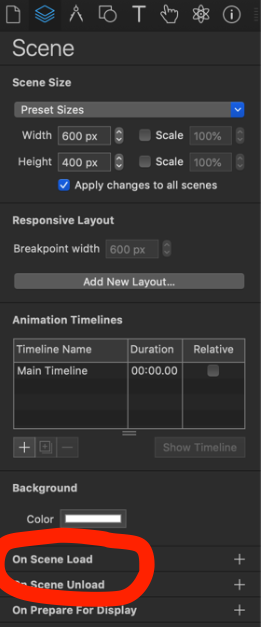
  • Start the first animation (blue square) on 'On Scene Load' (Scene Inspector) -> Start Timeline 'blueSquare'.

  • The 'blueSquare' timeline starts the rotation animation (timeline 'redSquare') after two seconds using a timeline action.
  • The 'blueSquare' timeline stops the rotation animation (timeline 'redSquare') after five seconds using a timeline action.
  • You loop the rotation animation by restarting the 'redSquare' timeline at the end (timeline action 'Start Timeline').

This behavior could also be achieved by using symbols and custom behaviors. However, the timeline approach is the simplest for now.

Hope, this helps.

timelines_kt.hype.zip (14.6 KB)

1 Like

Hi Kalle,

Thanks so much for taking the time to respond, I really appreciate it.

I was expecting to create three timelines, 1 for the red square, 1 for the blue square and a ‘main’ timeline that would trigger / co-ordinate the other two. I thought this solution would be more scalable as I would be able to add additional timelines as and when I wanted to add additional elements to the scene (say a yellow, green and purple square for example) and then be able to make timing and sequence changes in the main timeline to be able to make changes to the overall scene as I wanted.

I also though that clicking the play button would run the animation on the screen in the editing window, but I don’t seem to be able to do that - however when I click on the preview the scene renders correctly in a browser window. As a result I’m not able to scrub forward or back a frame at a time in order edit the overall scene to my exact requirements.

Would you be kind enough to rework your sample file to put me straight on those final points?

Thank you so much in advance, I really appreciate any input you can make.

Mike Regards,

Mike

I was expecting to create three timelines, 1 for the red square, 1 for the blue square and a ‘main’ timeline

This is exactly the structure you have now. Besides - you don´t have to create a Main Timeline - it exists by default…

… a ‘main’ timeline that would trigger / co-ordinate the other two

You could theoretically do that, but it doesn't necessarily make sense. If you want to have and control the animation(s) within the IDE on the Main Timeline, you will have to place them on the Main Timeline and avoid using additional timelines. However, you would lose flexibility and scalability that way.

In your case, 'blueSquare' controls the 'redSquare' timeline – so it makes much more sense to place the control commands inside 'blueSquare' rather than triggering them from the Main Timeline. This approach wouldn't change the fact that you can't visualize the progress by playing the Main Timeline within the IDE anyway...

If you absolutely want to go that route, you could use symbols (see attachment) – but only to a limited extent. For example, the loop of the red square couldn't be realized through a timeline action that way (well, technically you could – e.g., using a custom behavior – but it still wouldn't be visible when playing the Main Timeline within the IDE). You'd have to build the rotation inside the symbol twice, as I did in the example... In short, I wouldn't recommend that approach.

Instead, try to think in small units (timelines or symbols) that interact with each other and control one another. Try to keep the Main Timeline as clean as possible – make changes here (timeline actions, animations) only for overarching events. Testing takes place inside your browser, not within the IDE.

Maybe you can sketch out in more detail what exactly you want to develop and what functionality you need. We can then take a closer look at it together...

timelines_symbols_kt.hype.zip (16.2 KB)

2 Likes

Thank you so much again for your time and input.

You’ve made this all so much clearer and been a fantastic help. It’s all very much appreciated.

1 Like