Hi Daniel!
You may or may not be enthused about my solution as I made several major changes to your set-up. One of the major changes was to get rid of the “Hover” timeline. Perhaps You have another use for it other than the hover effect; if so it was not apparent to me and it appeared to simply complicate things so I removed it.
plane_button_test_JHSv1.hype.zip (50.3 KB)
In place of the two groups “book now Hover” & “book now Normal” there is now a single button (“Book Now”) in a group called “Book Now Button” and placed the “TextSprite_970x250.svg” as a background image for this button.
The group “Book Now Button” has its content overflow set to “hidden” so as to allow just one part of the “Book Now” button to be visible (i.e. the “normal” state).
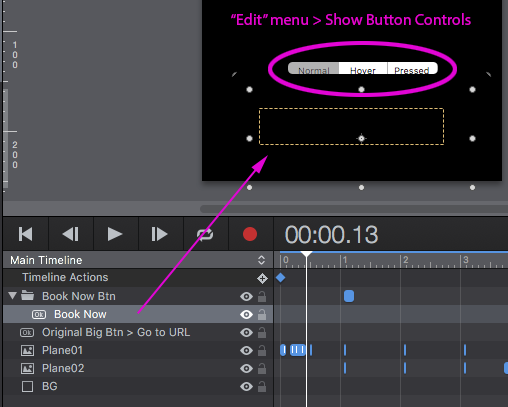
We then select the “Book Now” button itself, not the containing group, and choose “Show Button Controls” from the “Edit” menu. A small bar appears over the button with “Normal”, “Hover” and “Pressed” options. (Please see Fig.1)
I selected the “Hover” option and changed the “top property” (in the “Metrics Inspector”) of the “Book Now” button from “-20” (the “Normal” top position) to “-58” which reveals the “Hover” part of the SVG image.
In order to trigger the “Book Now” button for the “Hover” and “Mouse Click” events I moved it above the BIG button that covers the entire background. I also set a “Mouse Click” event (“Book Now” button) to go to the same URL as the BIG button (called “Original Big Btn > Go to URL” in my Demo)… so no matter where You click in the black background area the same “Go to URL…” will be triggered.
Functionally the Demo works as You requested even though the mechanism has been altered, and the actual set-up is much faster & simpler than it reads here. 
Fig.1